
Your Data & Privacy
RDSS Folder Mapper is designed to be transparent about what information it accesses, when it asks for credentials, and how everything is stored. Nothing is transmitted to third parties or collected for analytics.
When you may be asked to sign in
1. Data Management Planner login (browser-based)
When you first click Connect Research Folders, your default web browser opens to the Data Management Planner login page. This is a standard OAuth sign-in — the same mechanism used by university portals, Microsoft 365, and other institutional services.
Once signed in, the app retrieves your approved research project details from the Data Management Planner — including the list of projects you have access to and your role on each — and uses this to determine which research storage folders to connect on your behalf.
The app never sees your institutional password
Your credentials are entered directly into the Data Management Planner login page inside the browser. The app only receives a short-lived access token after you have successfully signed in — it never has access to your username or password.
After signing in, the browser may display a message like "You can now close this tab" — the app has received the token it needs and the browser window is no longer required.
2. Network storage credentials (if prompted)
In some network configurations, mounting a research storage folder requires separate credentials — typically your institutional username and password for the file server (e.g. Active Directory credentials).
If these are required, the app will display a credentials dialog before mounting. The dialog pre-fills your system username to save you time.
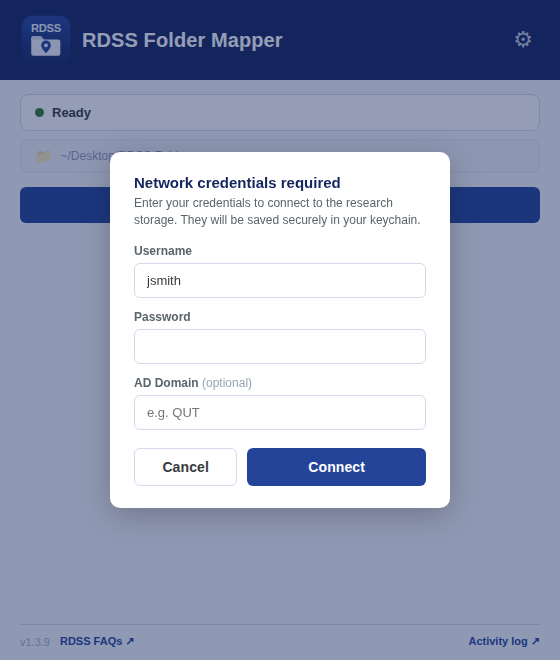
When this prompt appears
This prompt only appears when the storage server requires explicit credentials that your current session does not already provide. Many environments handle this automatically and this dialog will never appear.
3. Re-authentication after token expiry
Your session token is kept only in memory for the lifetime of the app — it is never saved. When it expires, or after you restart the app, the next time you click Connect Research Folders your browser will open to the institutional login page again.
What is stored and where
All network storage credentials are stored exclusively in your operating system's secure credential store. Nothing is written to a plain text file on disk.
| What | Where | Purpose |
|---|---|---|
| Session token (OAuth) | In memory only (current app session) | Authorises calls to the research folder API |
| Network storage credentials | OS keychain / credential manager | Mounts the file server without re-prompting every session |
| App settings | User data folder (config.json) | Remembers your chosen base folder and debug preference |
OS keychain / credential manager refers to:
- macOS — Keychain Access (the same store used by Safari, Mail, and system apps)
- Windows — Windows Credential Manager
- Linux — GNOME Keyring or KDE Wallet (via
libsecret)
Credentials stored in the OS keychain are:
- Encrypted at rest by the operating system
- Accessible only to your user account
- Never written to disk in plain text by this app
What is NOT collected
- ❌ No usage analytics or telemetry
- ❌ No crash reporting sent off-device
- ❌ No passwords or tokens logged to the Activity log
- ❌ No data shared with third parties
Removing stored credentials
To remove everything this app has stored:
- Open Settings and click Clear Key Chain — this removes the credentials this app saved itself: on macOS the SMB Internet password for the configured server, and on Linux the
secret-toolentry (service rdss-folder-mapper). The button appears only when there is something stored to clear. Credentials that macOS Finder or Linux GVfs (gio mount) saved on your behalf are managed by the OS — remove those from your keychain/keyring manager directly (see below). - Your OAuth session token is never written to the keychain, so there is nothing to remove — it is discarded automatically when the app closes.
To verify or manually remove entries, open your OS credential store:
- macOS: Open Keychain Access and search for
rdss-folder-mapper - Windows: Open Credential Manager → Windows Credentials and look for entries starting with
rdss-folder-mapper - Linux: Open your keyring manager and look for entries labelled RDSS Folder Mapper
Deployment configuration
Your IT administrator may have deployed a configuration file (config.json) to your device as part of the app installation. This file contains connection details for your institution's research storage infrastructure (server addresses, authentication endpoints). It does not contain any personal information and is readable by any user on the device — it is not a secret.
If folder mapping is not working, contact your IT helpdesk, as the configuration may need to be updated for your environment.