
Desktop GUI
The RDSS Folder Mapper desktop application is designed for researchers who want a simple, point-and-click way to mount their network research storage folders on their computer.
Main window
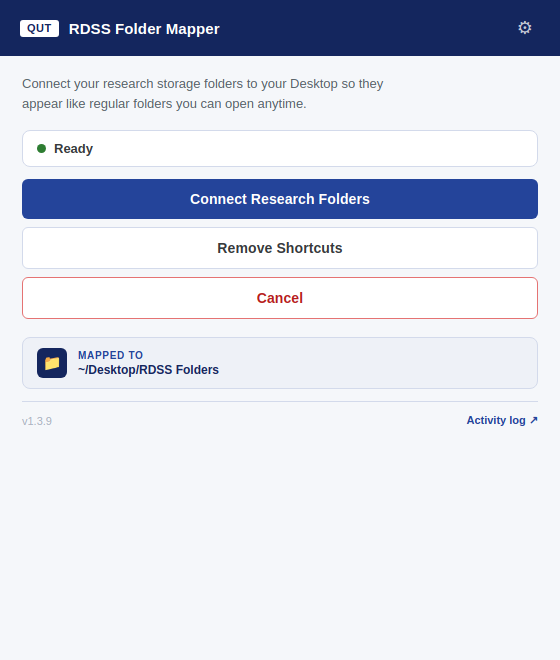
The main window has three sections:
| Section | Description |
|---|---|
| Status bar | Shows the current state (Ready, Mapping, Error). |
| Connect Research Folders | Fetches your approved project list and creates folder shortcuts on your Desktop. |
| Remove Shortcuts | Removes all previously created folder shortcuts. |
At the bottom, the Activity log toggle reveals a detailed log of every action the tool performs. This is useful for troubleshooting.
Mapping your folders
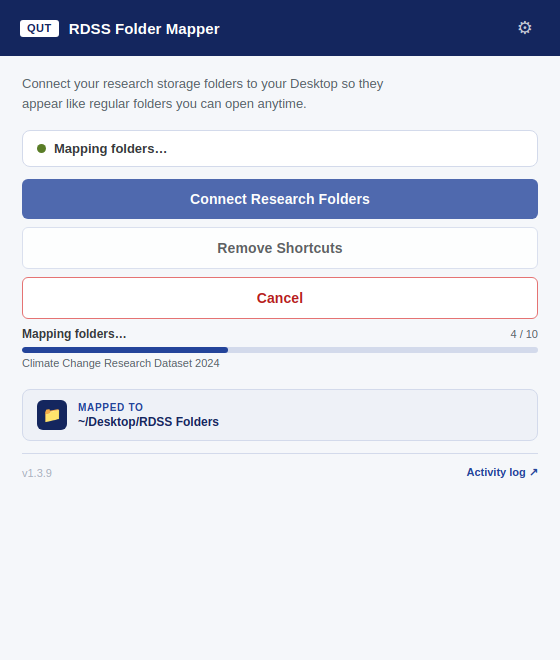
- Click Connect Research Folders.
- A progress bar appears, showing each folder as it is mapped.
- When complete, the bar turns green and the status changes to Folders mapped.
Mapped folders appear in ~/Desktop/RDSS Folders (or your configured base directory) and can be browsed like any regular folder.
Settings
Click the ⚙ (gear) icon in the top-right corner to open the Settings panel.
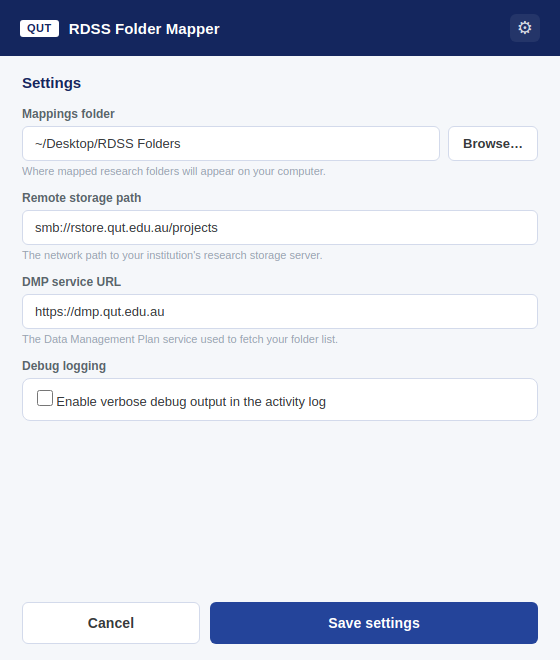
| Setting | Description | Default |
|---|---|---|
| Mappings folder | Where folder shortcuts are created on your computer. | ~/Desktop/RDSS Folders |
| Debug logging | Enables verbose output in the Activity log. | Off |
Click Save settings to persist your changes. Settings are stored locally and remembered between sessions.
Deployment configuration
Settings such as the remote storage path and authentication details are configured by your IT administrator in a config.json file placed alongside the application. Contact your IT department if folder mapping is not working.
Troubleshooting
- "Error — see activity log": Expand the Activity log to see what went wrong. Common causes are network connectivity issues or an expired authentication session.
- Folders not appearing: Ensure the base directory exists. If you changed it in Settings, create the folder manually first.
- macOS security warning on first launch: Right-click the app and choose Open, then confirm.
Credentials & privacy
The app signs you in via your institution's standard login page — it never sees your password. Network storage credentials (if required) are stored securely in your OS keychain and can be removed at any time via the Clear Key Chain button in Settings — it appears only when there is something stored to clear.